Monitoring Tools
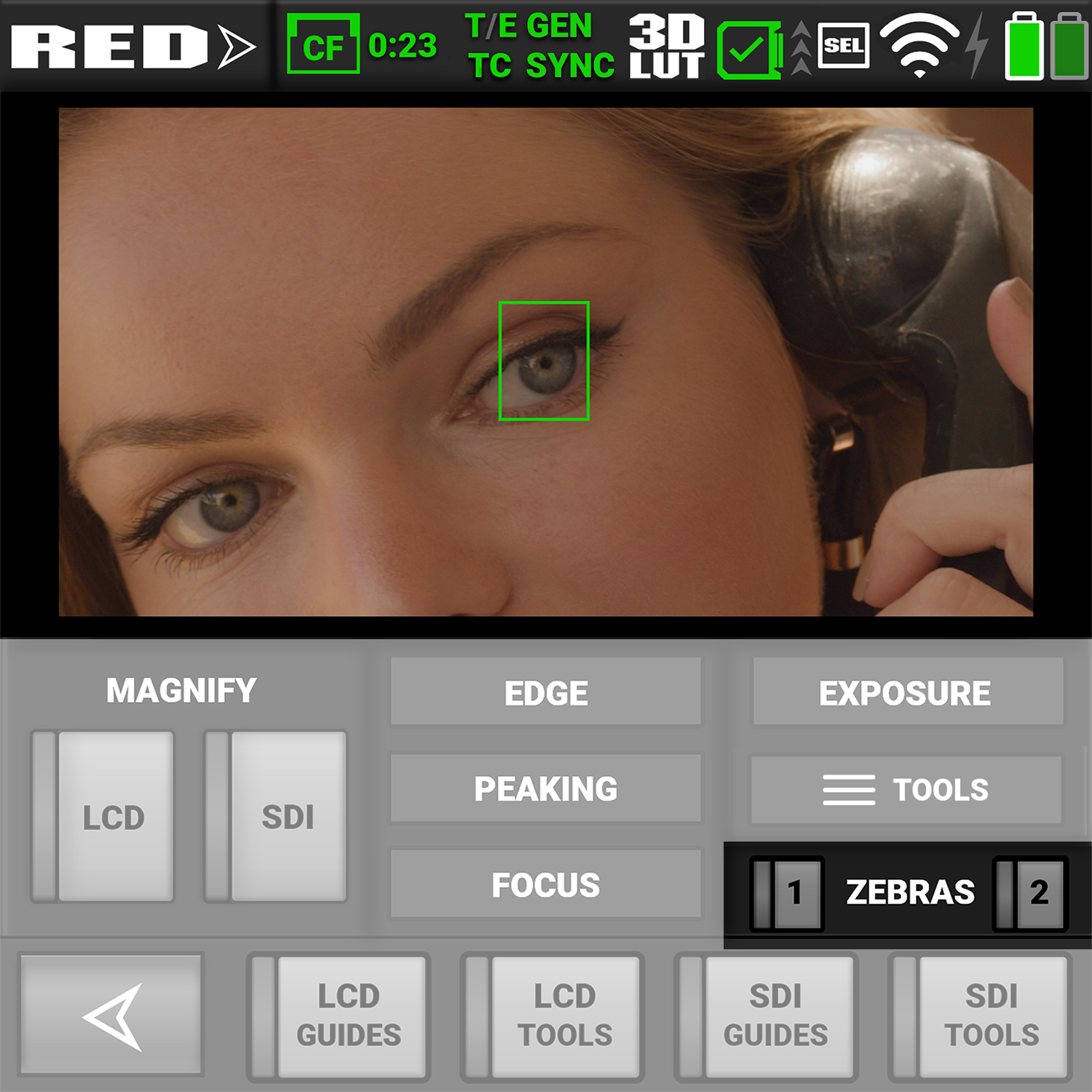
Open the Monitoring tools by tapping on the Traffic Light section of the LCD Preview page.
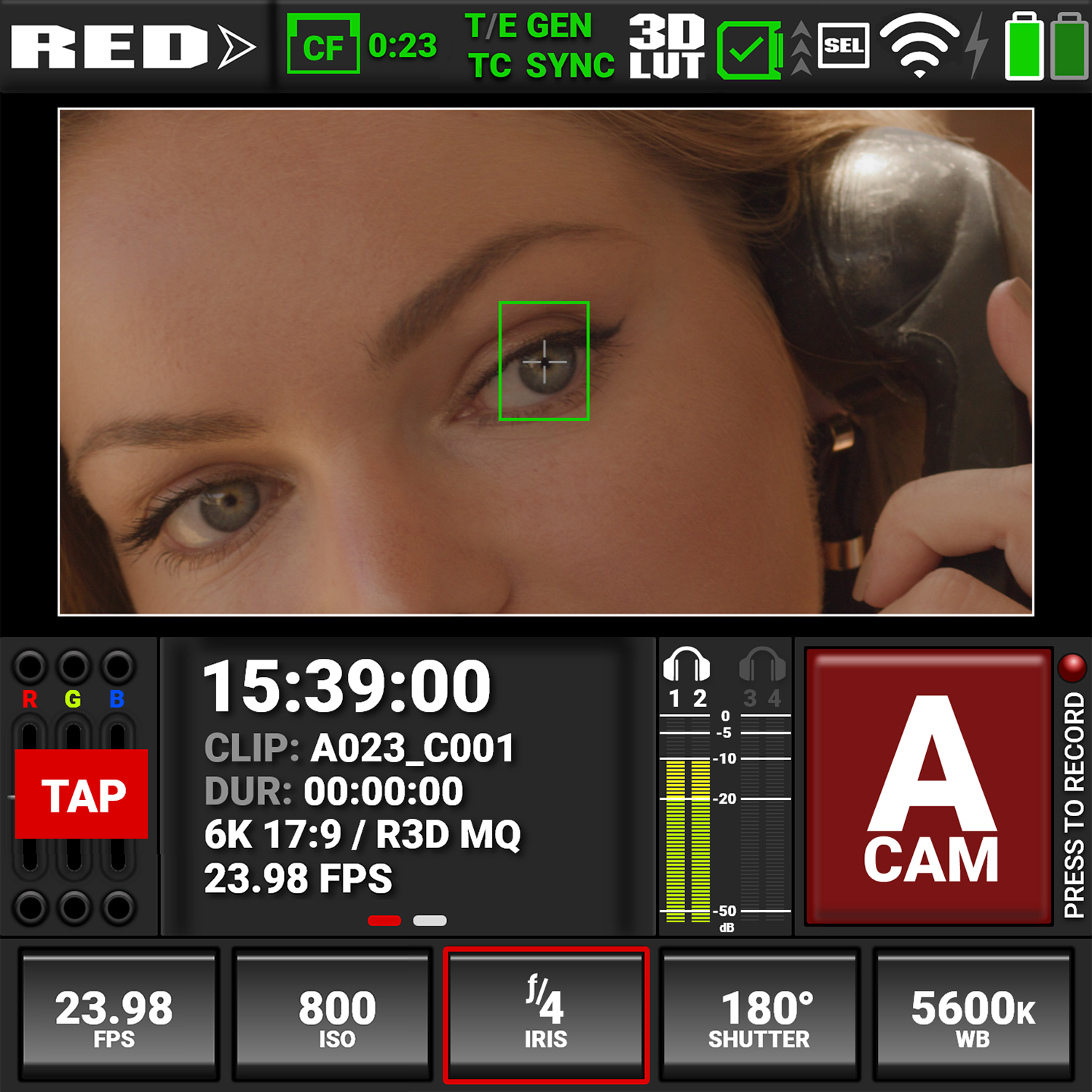
Return to the LCD Preview page by tapping the arrow button 
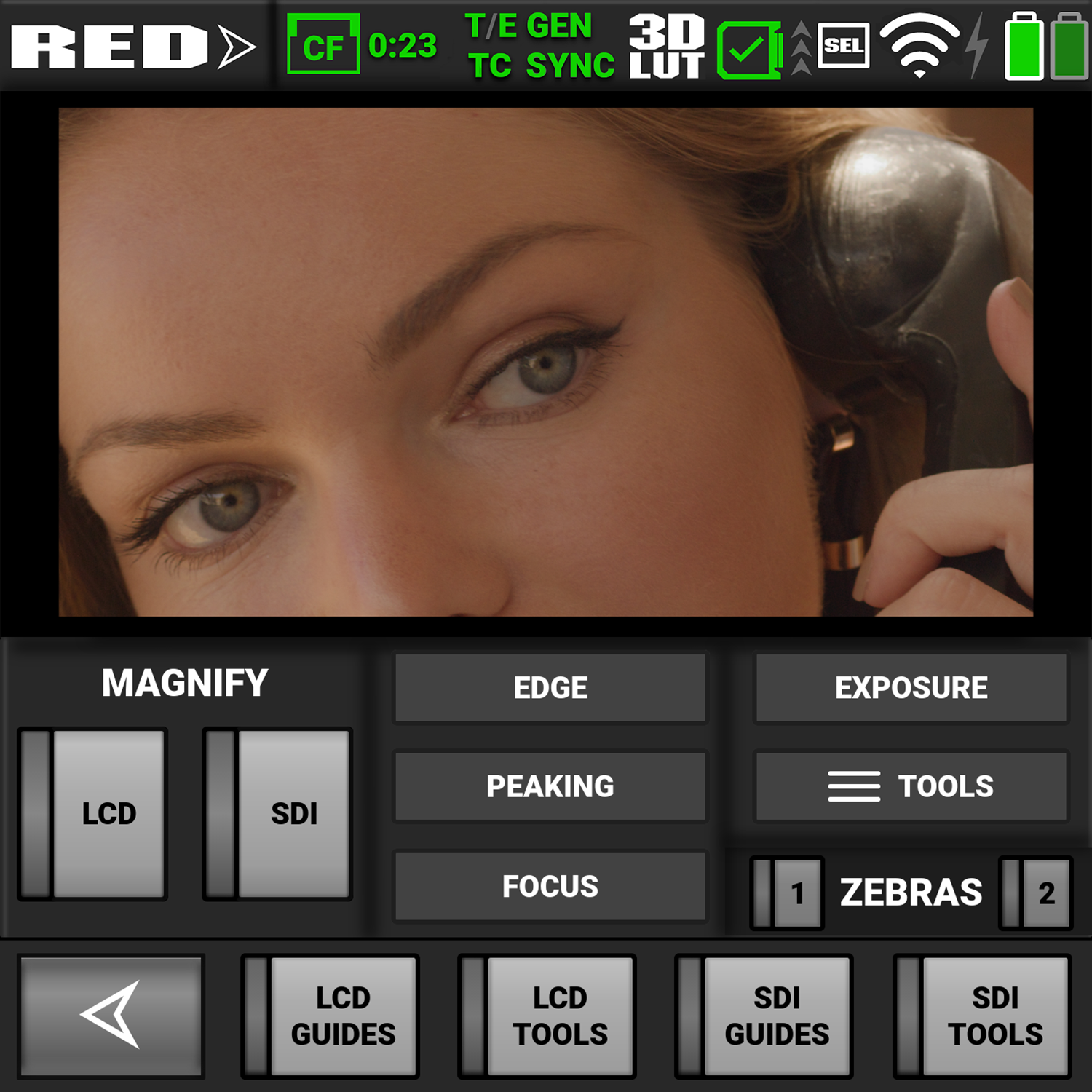
The Monitoring tools provide an easy way to toggle many of the monitoring features on and off.
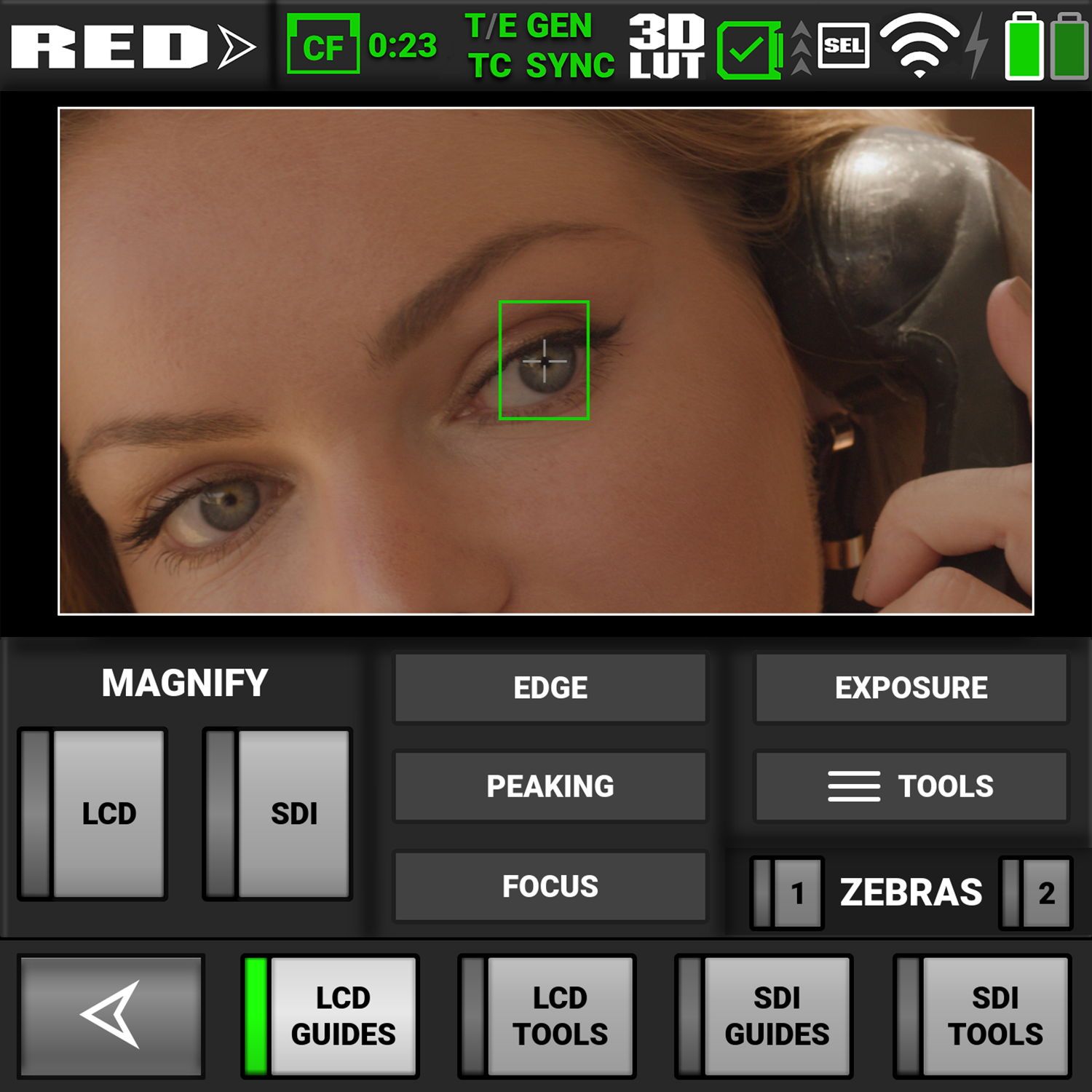
When the features are selected, the buttons light green to indicate the selection.
Onboard LCD Switches
The LCD switches allow you to view or hide the enabled LCD monitor Guides and Tools on the LCD touchscreen.
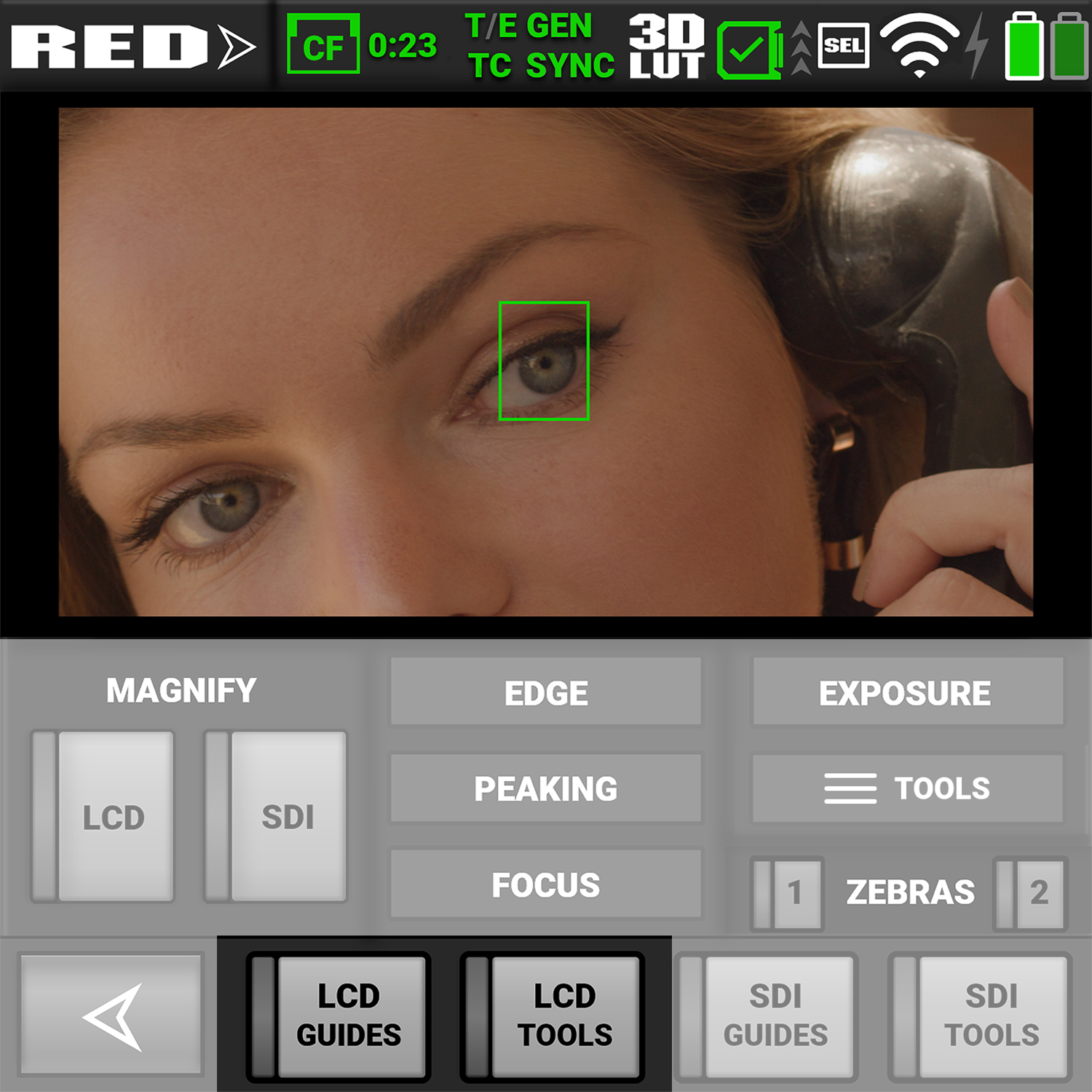
When the switches are selected, the gray bar turns green on the left side of the switch.
The LCD Guides switch controls the display of the Monitoring Guides (frame guides and center guide) on the LCD.
The LCD Tools switch controls the display of the Monitoring Tools (false color, peaking, zebra) on the LCD and on Live Stream.
SDI Switches
The SDI switches allow you to view or hide the enabled SDI monitor Guides and Tools on the LCD touchscreen.
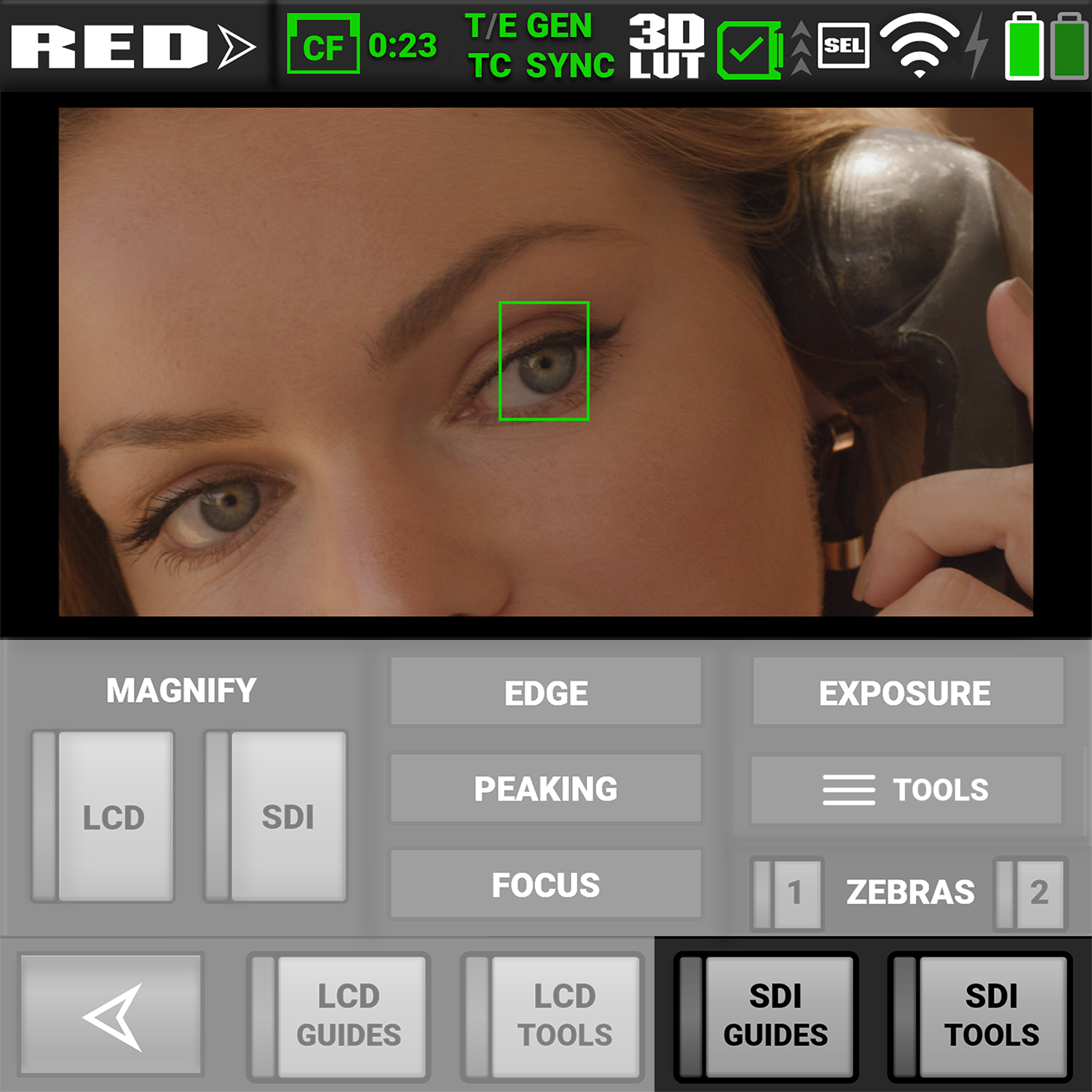
When the switches are selected, the gray bar turns green on the left side of the switch.
The SDI Guides switch displays the Monitoring Guides (frame guides and center guide) on the SDI output.
The SDI Tools switch displays the Monitoring Tools (false color, peaking, zebra) on the SDI output.
Magnify
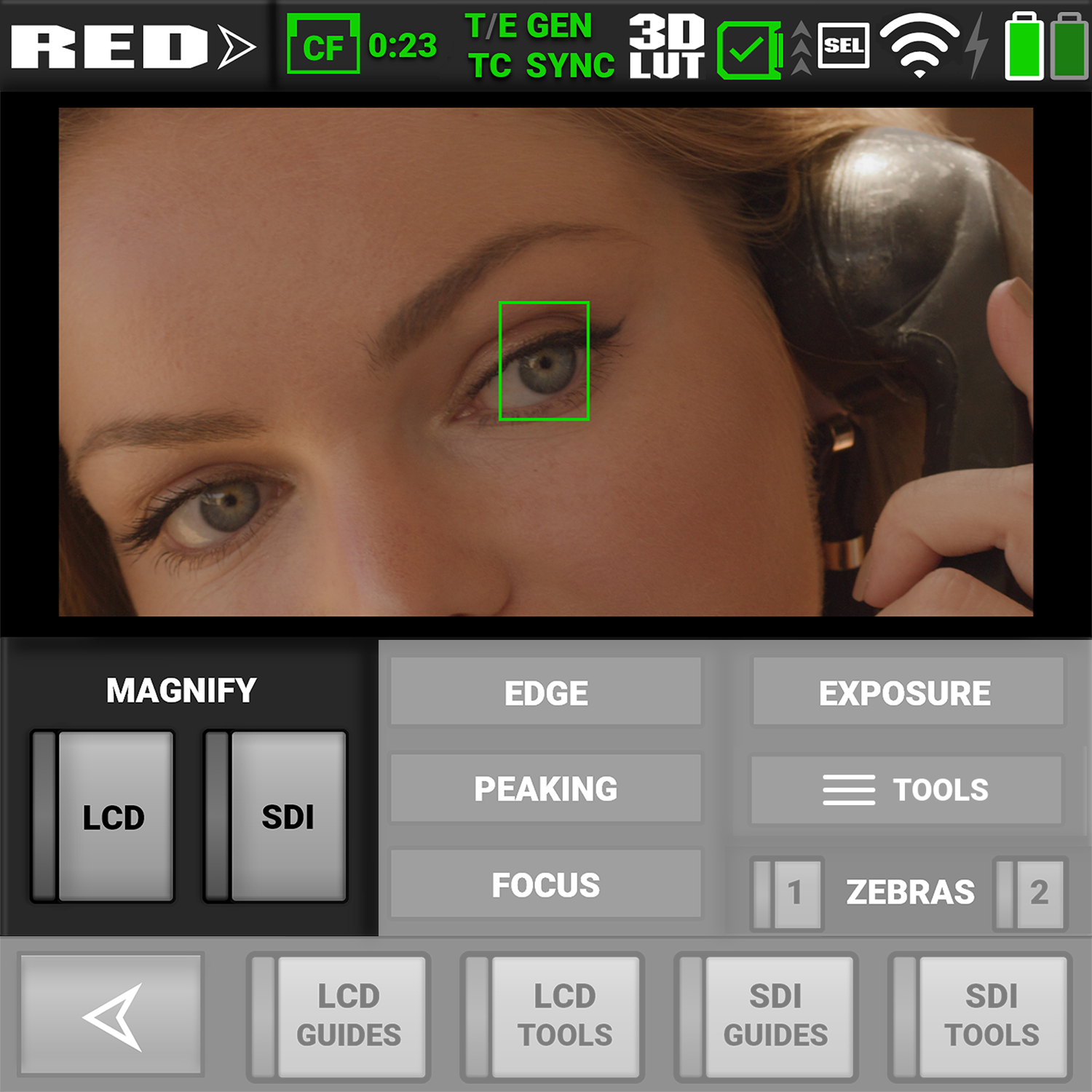
The Magnify section allows you to enable or disable magnification on the camera's LCD and the SDI monitor output. When the switches are selected, the gray bar turns green on the left side of the switch.
Focus
The Focus section allows you to enable or disable one of the focus tools. The focus tool button you select will turn red.
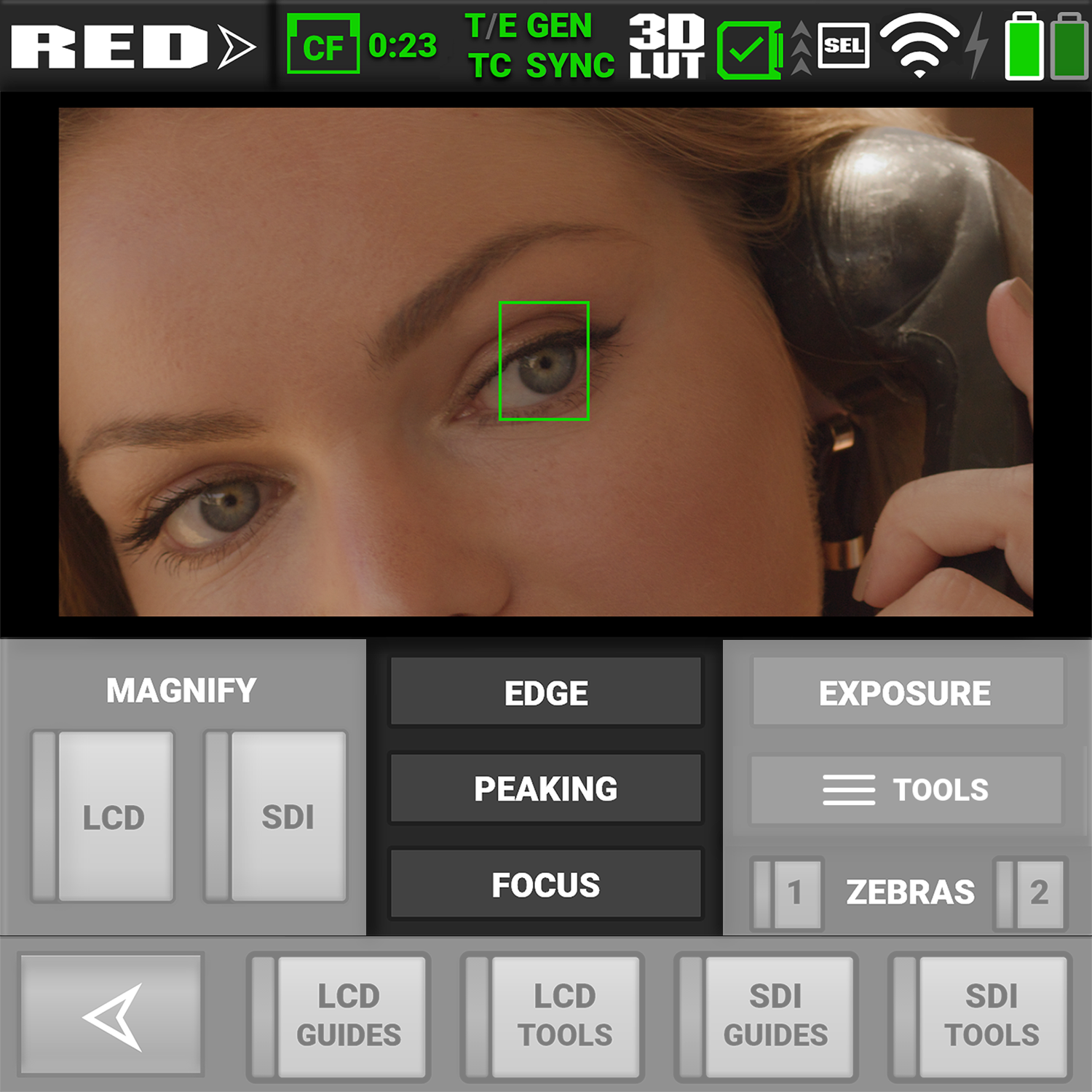
For information about using the Focus tools, refer to Tools.
Exposure
The Exposure section allows you to enable or disable one of the exposure tools. The Exposure tool button you select will turn red.
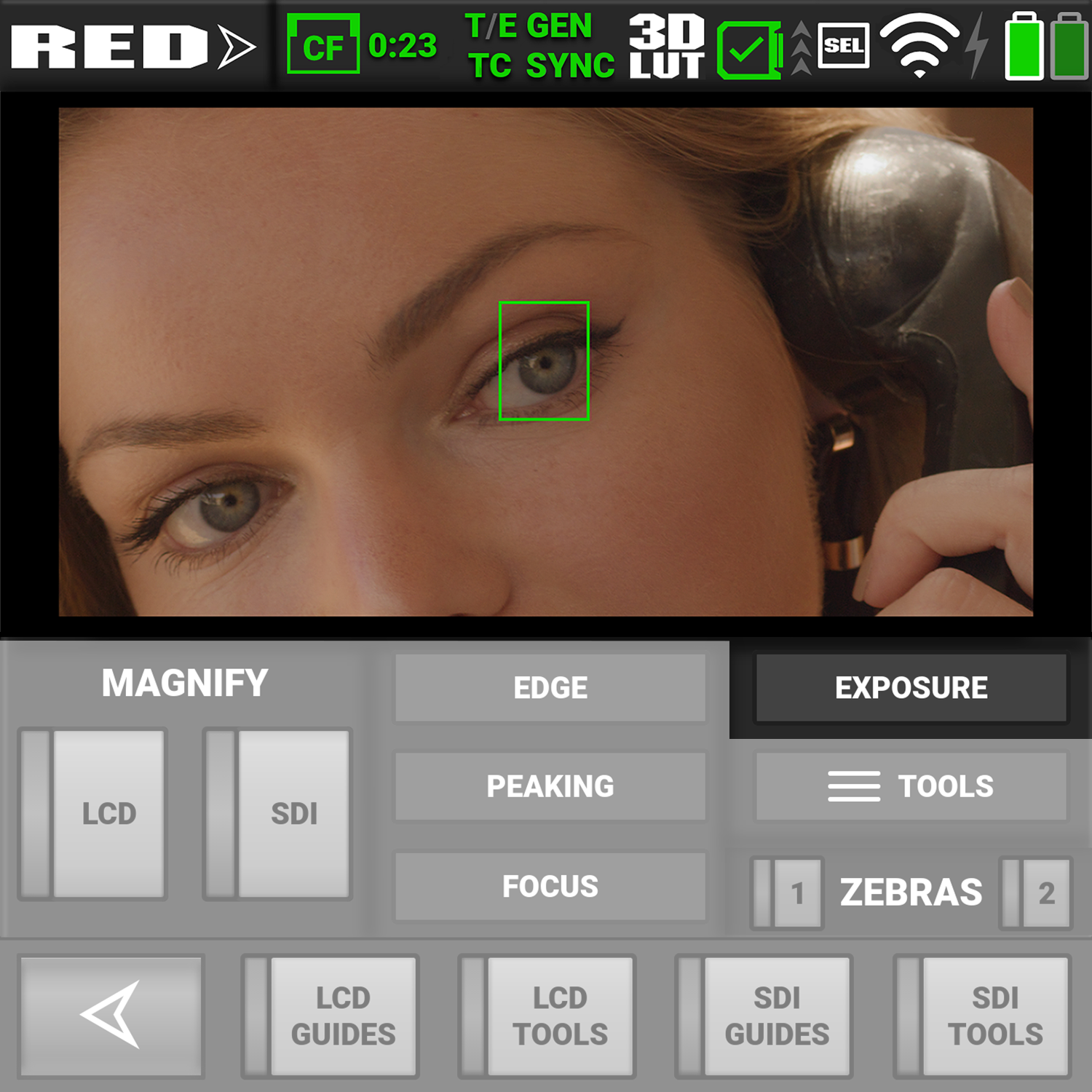
For information about using the Exposure tools, refer to Tools.
Tools
The Tools section allows you to open the Monitor Tools menu.
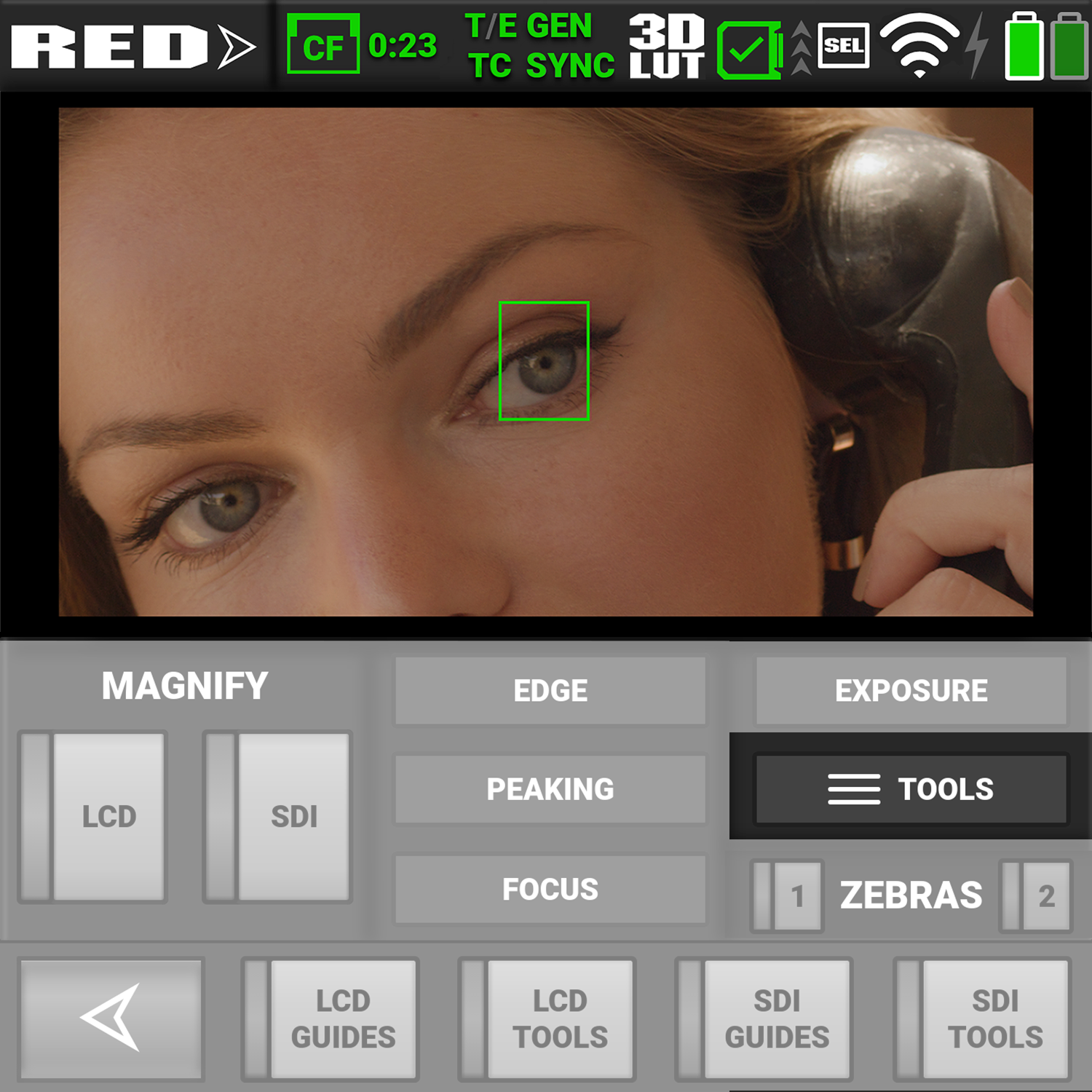
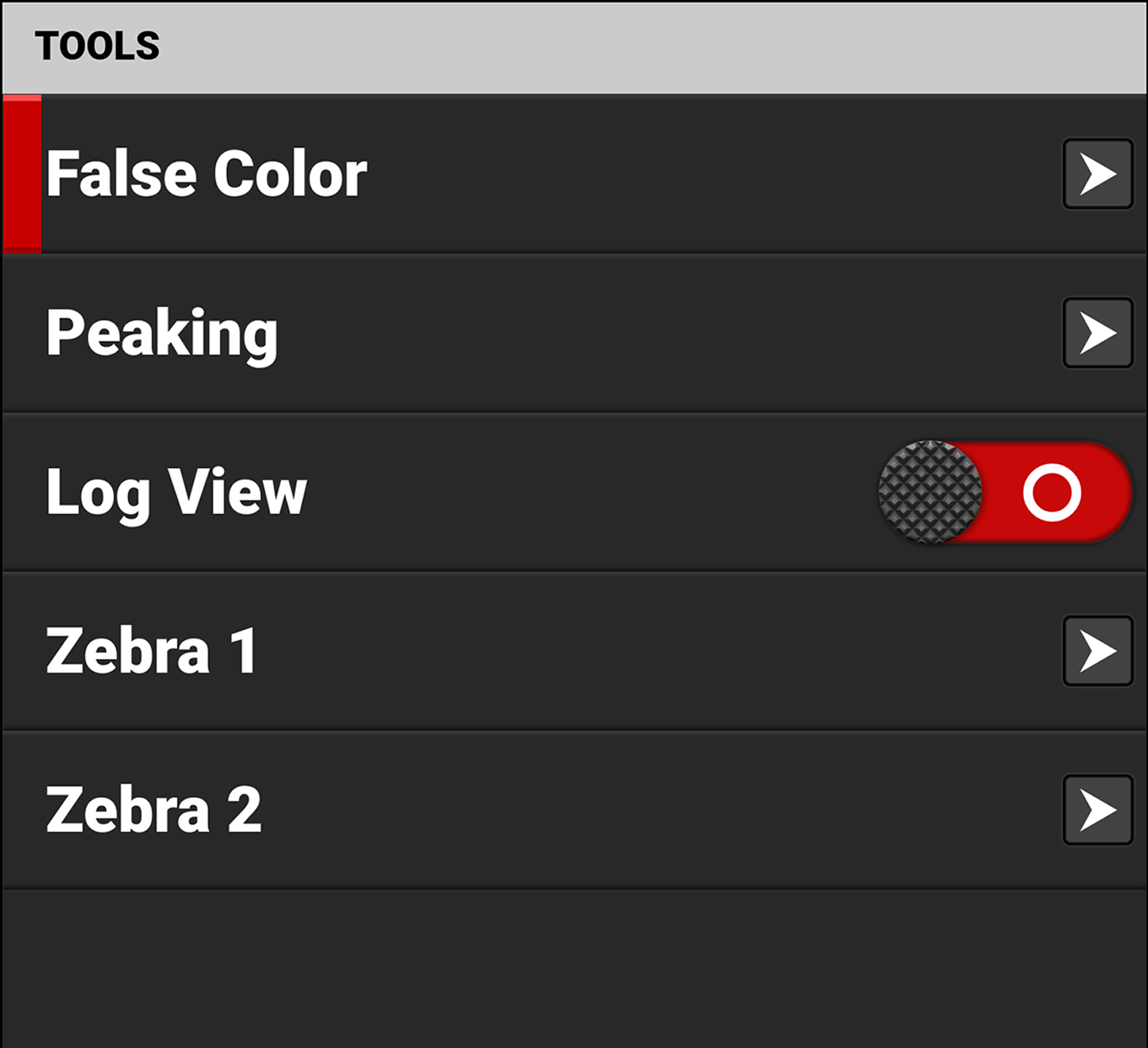
For information about the Monitor Tools menu, refer to Tools.